How to take RMAN Backup on DBCS in OCI to Object Storage
We are going to learn how we can take a RMAN backup on DBCS and store it in Object storage bucket in OCI
Source System Information:
DB version: 11.2.0.4
DB on OCI DBCS
Type of Database : Oracle EBS
Single Node
Steps:
1) Create an OCI Private bucket to store RMAN backup.
Click on Navigation Menu > Object Storage > Object Storage > Buckets
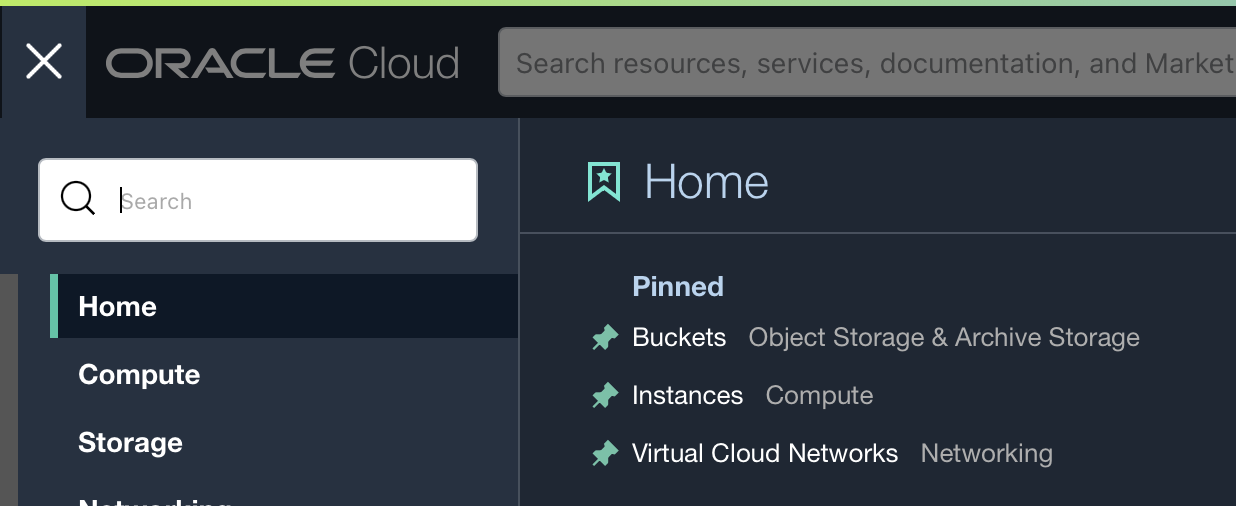

2) As My OCI region is singapore so my Object_Storage URL:
https://objectstorage.ap-singapore-1.oraclecloud.com
Bucket Name: PROD_RMAN_BACKUP
3) Connect to DBCS System Database Node
sudo su - oracle
4) Change to the directory that contains the backup module opc_install.jar file.
cd /opt/oracle/oak/pkgrepos/oss/odbcs
In case you don’t have file you can download on on-prem from below link.
URL https://www.oracle.com/database/technologies/oracle-cloud-backup-downloads.html
Also make sure java is installed on java. The version need to be correct. Don't install a higher version.
yum install java
[opc@foadbserver ~]$ which java
/usr/bin/java
[opc@foadbserver ~]$ java -version
java version "1.8.0_371"
Java(TM) SE Runtime Environment (build 1.8.0_371-b11)
Java HotSpot(TM) 64-Bit Server VM (build 25.371-b11, mixed mode)
5) Create directories to store library files and encryption key files.
mkdir -p /home/oracle/oci/lib
mkdir -p /home/oracle/oci/wallet
6) Install backup Module:
First make sure ntp is running
NTP Installation and Configuration
[root@funebs ~]# yum -y install ntp
Syntax:
java -jar opc_install.jar -opcId <user_id> -opcPass '<auth_token>' -container <bucket_name> -walletDir ~/hsbtwallet/ -libDir ~/lib/ -configfile ~/config -host https://swiftobjectstorage.<region_name>.oraclecloud.com/v1/<object_storage_namespace>


cd /opt/oracle/oak/pkgrepos/oss/odbcs
java -jar opc_install.jar -opcId ebscmadmin -opcPass 'xyz' -container PROD_RMAN_BACKUP -walletDir /home/oracle/oci/wallet/ -libDir /home/oracle/oci/lib -configFile ~/config -host https://swiftobjectstorage.ap-singapore-1.oraclecloud.com/v1/adjae238ashj
Output:
Oracle Database Cloud Backup Module Install Tool, build 12.2.0.1.0DBBKPCSBP_2018-06-12
Oracle Database Cloud Backup Module credentials are valid.
Backups would be sent to container RMAN_BACKUP.
Oracle Database Cloud Backup Module wallet created in directory /home/oracle/oci/wallet.
Oracle Database Cloud Backup Module initialization file /home/oracle/config created.
Downloading Oracle Database Cloud Backup Module Software Library from file opc_linux64.zip.
Download complete.
7) Check library and wallet directory content to make sure library files and encryption wallet key files are placed under them.
cd /home/oracle/oci/lib
ls
cd ../wallet
ls
8) Configure RMAN
Using Oracle user on DBCS node.
rman target /
Configure RMAN to use the SBT device and point to the config file that was created when you installed the backup module.
CONFIGURE CHANNEL DEVICE TYPE 'SBT_TAPE' PARMS 'SBT_LIBRARY=/home/oracle/lib/libopc.so, SBT_PARMS=(OPC_PFILE=/home/oracle/config)';
CONFIGURE DEFAULT DEVICE TYPE TO SBT_TAPE;
CONFIGURE BACKUP OPTIMIZATION ON;
CONFIGURE CONTROLFILE AUTOBACKUP ON;
CONFIGURE CONTROLFILE AUTOBACKUP FORMAT FOR DEVICE TYPE SBT_TAPE TO '%F';
CONFIGURE ENCRYPTION FOR DATABASE ON;
CONFIGURE RETENTION POLICY TO RECOVERY WINDOW OF 2 DAYS;
More configuration can be changed based on requirements.
Sample RMAN Script
rman target / log=~/logs/proddb_${DATE}.log << EOF
SET ENCRYPTION IDENTIFIED BY "funebs123" ONLY; -->Every Time we run we need to set this.
run
{
ALLOCATE CHANNEL c1 DEVICE TYPE 'SBT_TAPE' PARMS 'SBT_LIBRARY=/home/oracle/oci/lib/libopc.so, SBT_PARMS=(OPC_PFILE=/home/oracle/config)';
backup current controlfile format 'PROD_control_%d_%U.ctl';
BACKUP FORMAT PROD_full_%d_%u_%s_%p' DATABASE SPFILE FORMAT 'PROD_SPFILE_%d_%u_%s_%p' PLUS ARCHIVELOG FORMAT PROD_ARCH_%d_%u_%s_%p';
release channel ch1;
}
EOF
#!/bin/bash############################################Created by Himanshu ################02-JAN-2023################. /home/oracle/.bash_profileexport DATE=$(date +%y-%m-%d_%H%M%S)/u01/app/oracle/product/11.2.0.4/dbhome_1/bin/rman target / log=/home/oracle/logs/proddb_${DATE}.log << EOFSET ENCRYPTION IDENTIFIED BY "foadbbackup23" ONLY;run{ALLOCATE CHANNEL c1 DEVICE TYPE 'SBT_TAPE' PARMS 'SBT_LIBRARY=/home/oracle/oci/lib/libopc.so, SBT_PARMS=(OPC_PFILE=/home/oracle/config)';ALLOCATE CHANNEL c2 DEVICE TYPE 'SBT_TAPE' PARMS 'SBT_LIBRARY=/home/oracle/oci/lib/libopc.so, SBT_PARMS=(OPC_PFILE=/home/oracle/config)';ALLOCATE CHANNEL c3 DEVICE TYPE 'SBT_TAPE' PARMS 'SBT_LIBRARY=/home/oracle/oci/lib/libopc.so, SBT_PARMS=(OPC_PFILE=/home/oracle/config)';ALLOCATE CHANNEL c4 DEVICE TYPE 'SBT_TAPE' PARMS 'SBT_LIBRARY=/home/oracle/oci/lib/libopc.so, SBT_PARMS=(OPC_PFILE=/home/oracle/config)';delete noprompt obsolete;backup current controlfile format 'PROD_control_%U.ctl';BACKUP AS COMPRESSED BACKUPSET TAG 'WEEEKLY_FULL_DB_MANUAL' DATABASE format 'PROD_full_%u_%s_%p' PLUS ARCHIVELOG format 'PROD_Arch_%u_%s_%p';RELEASE CHANNEL c1;RELEASE CHANNEL c2;RELEASE CHANNEL c3;RELEASE CHANNEL c4;}EOF

Comments
Post a Comment