
Create a Database Standby (Data Guard) on OCI Oracle Cloud for a DB System Database

Create a Database Standby (Data Guard)  on OCI Oracle Cloud for a DB System Database


In one of my previous post I have created a 12c DB System on Oracle Cloud OCI.

Now for that database I am going to create a Dataguard for that database. In OCI we need to have an Enterprise version to create a data guard.

Steps:

1) Login to OCI console and go to Database Services. Select the Database and click on Data Guard Association.
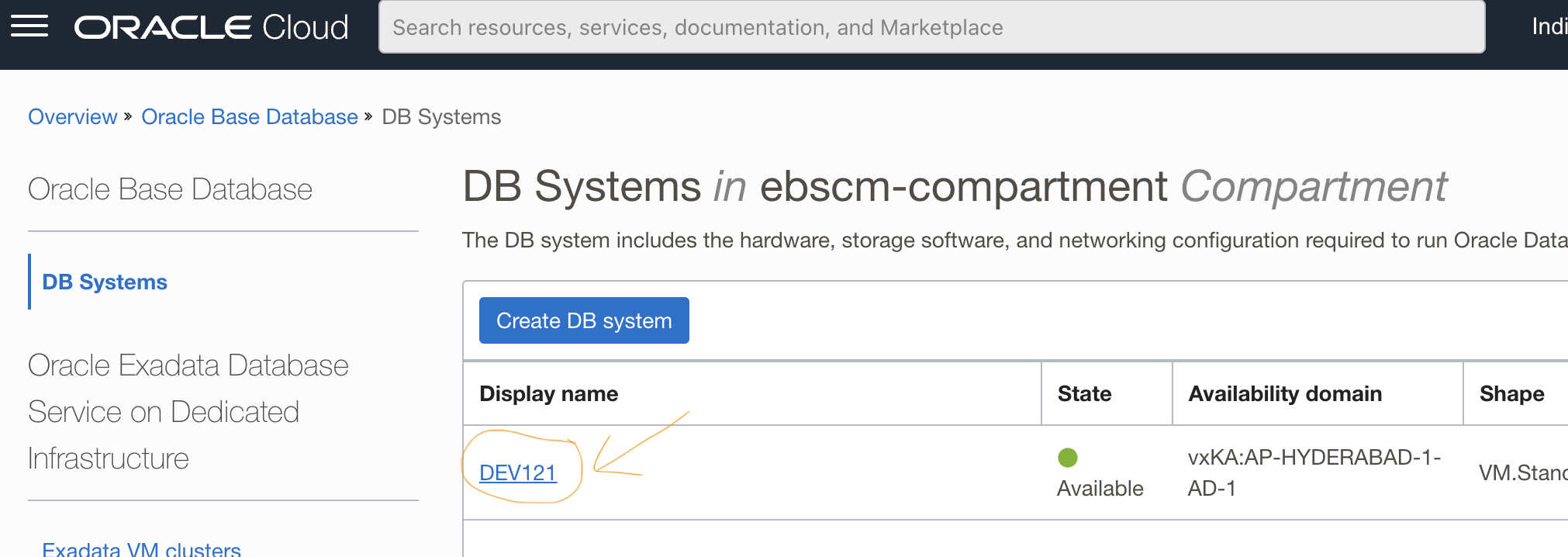

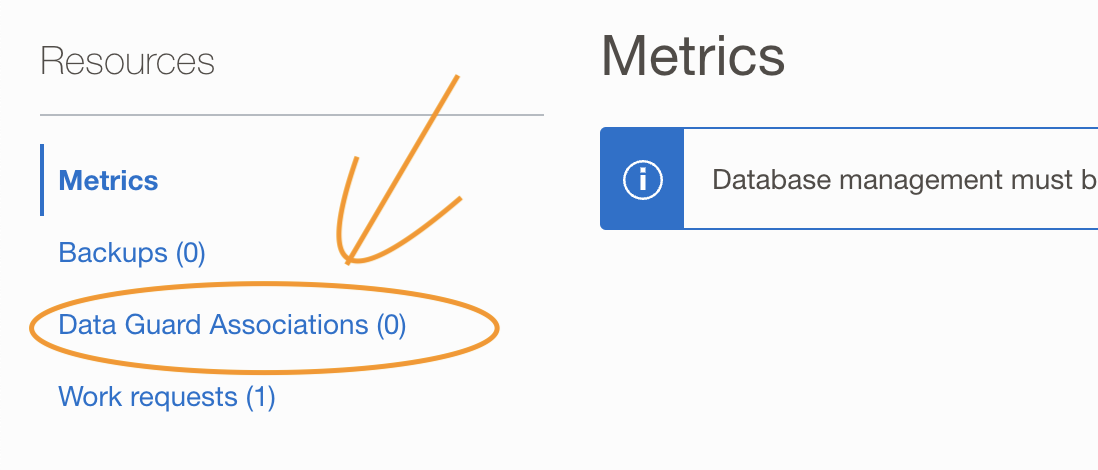

2) But Wait ....!!! Before creating the dataguard, let's create a database image. Go to Database details and follow below screenshots. This image will be needed while creating the dataguard

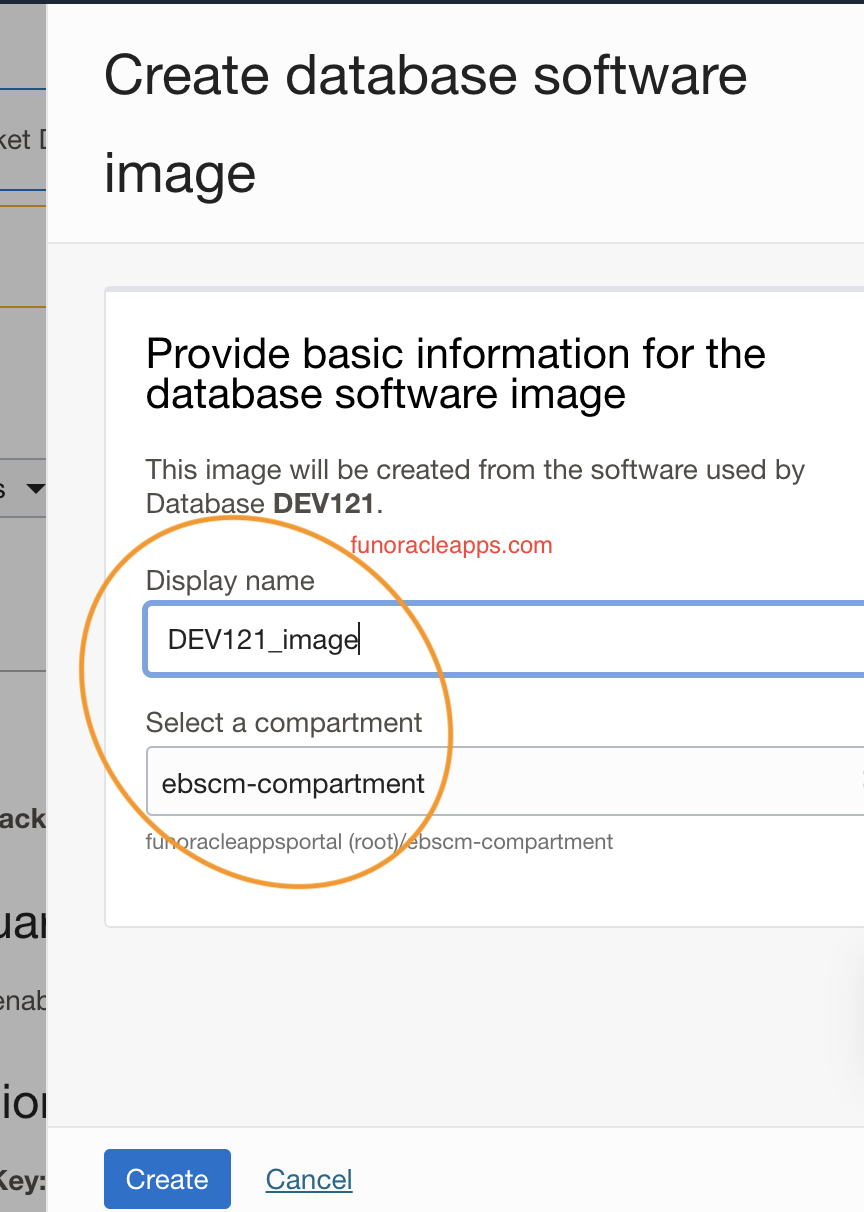
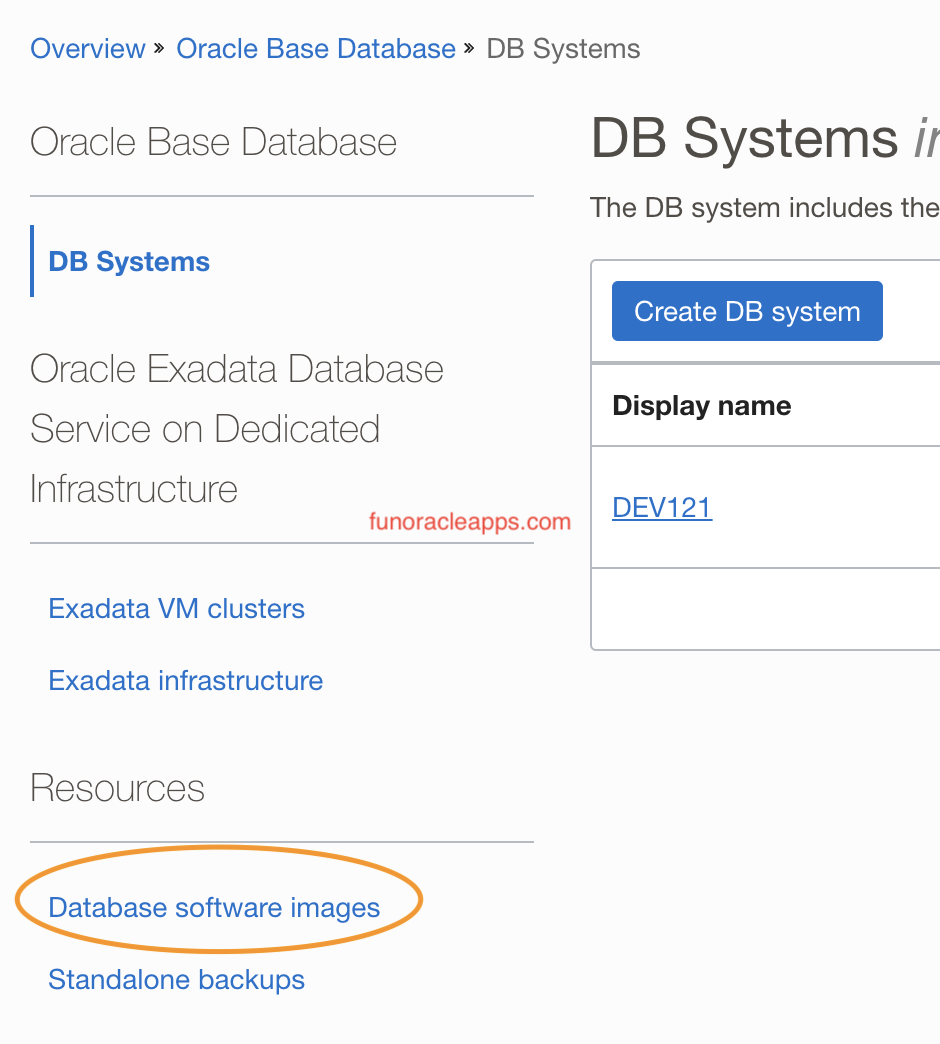


It takes some time to create the image.
Validate that the database image is created.


3) Now we will create DG. Go to navigation as given in point 1 and follow as below. Give the same shape as primary database(not mandatory) and choose the image created in step 2.


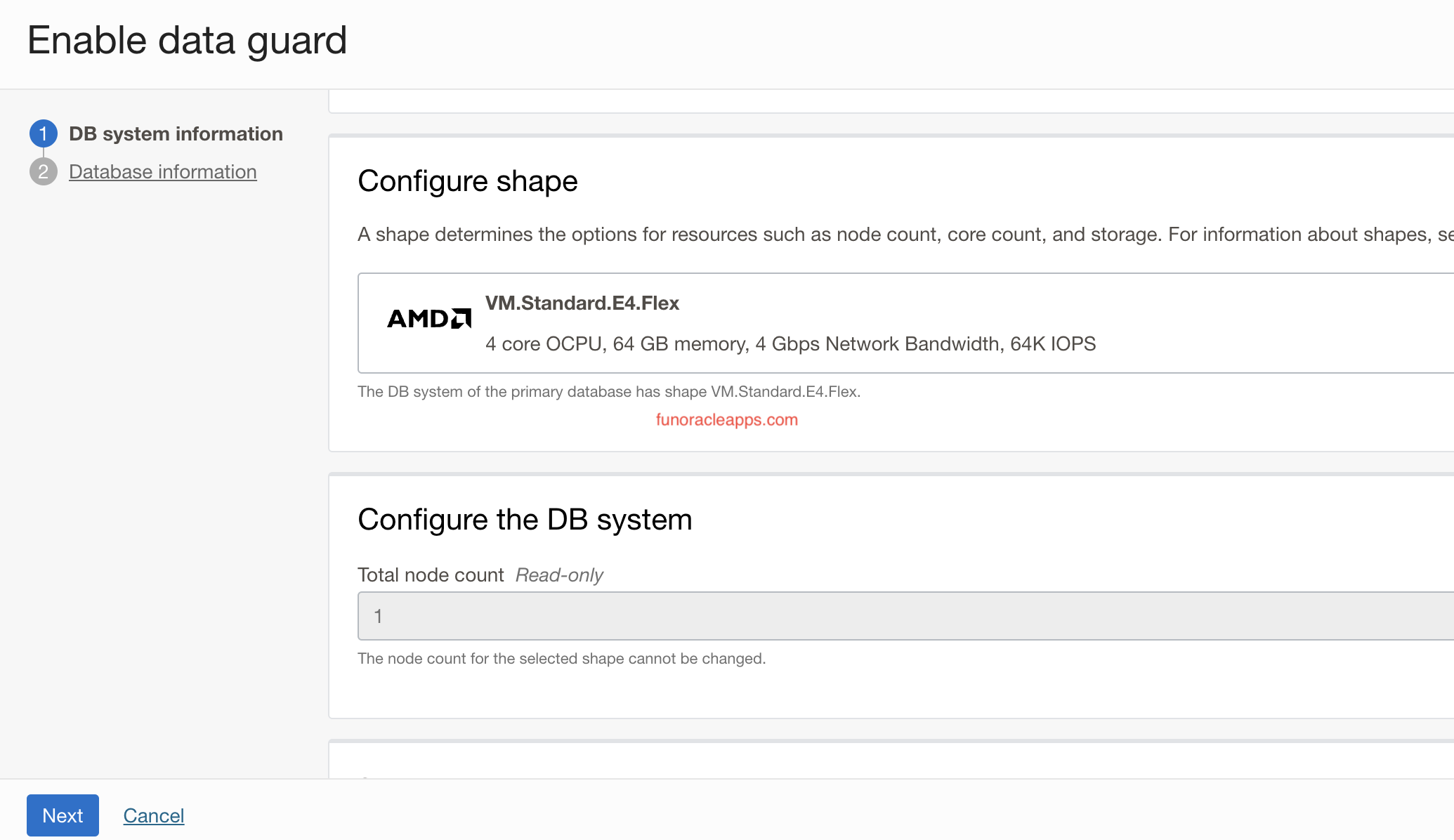


Click Next


Click on Enable Data Guard

It will take time to complete. Approx. 1 hr 25 mins 
Process is running to provision the DG.


My Standby is created.


Lets connect to my Primary and Standby to verify

The standby host will also use same ssh keys as per the primary.


SQL> SELECT PROCESS,STATUS, THREAD#,SEQUENCE#, BLOCK#, BLOCKS FROM V$MANAGED_STANDBY ;

PROCESS   STATUS   THREAD#  SEQUENCE# BLOCK#     BLOCKS
--------- ------------ ---------- ---------- ---------- ----------
ARCH   CONNECTED 0    0       0 0
ARCH   CLOSING 1    5       1        514
ARCH   CONNECTED 0    0       0 0
RFS   RECEIVING 1    6 611431 1
RFS   IDLE 0    0       0 0
MRP0   APPLYING_LOG 1    6 611430    2097152

12 rows selected.


If you like please follow and comment

Comments

Popular posts from this blog

WebLogic migration to OCI using WDT tool

WebLogic migration to OCI using WDT tool Oracle WebLogic Deploy Tool (WDT) is an open-source project designed to simplify and streamline the management of Oracle WebLogic Server domains. With WDT, you can export configuration and application files from one WebLogic Server domain and import them into another, making it a highly effective tool for tasks like migrating on-premises WebLogic configurations to Oracle Cloud. This blog outlines a detailed step-by-step process for using WDT to migrate WebLogic resources and configurations. Supported WLS versions Why Use WDT for Migration? When moving Oracle WebLogic resources from an on-premises environment to Oracle Cloud (or another WebLogic Server), WDT provides an efficient and reliable approach to: Discover and export domain configurations and application binaries. Create reusable models and archives for deployment in a target domain. Key Pre-Requisites Source System: An Oracle WebLogic Server with pre-configured resources such as: Applica...

Rename a PDB in Oracle Database Multitenant Architecture in TDE and Non TDE Environment

Rename a PDB in Oracle Database Multitenant Architecture I am sharing a step-by-step guide to help you rename a PDB. This approach uses SQL commands. Without TDE or encryption Wallet Initial Check Check the Current Database Name and Open Mode: SQL > SELECT NAME, OPEN_MODE FROM V$DATABASE; NAME OPEN_MODE --------- -------------------- BEECDB READ WRITE List Current PDBs: SQL > SHOW PDBS; CON_ID CON_NAME OPEN MODE RESTRICTED ---------- ------------------------------ ---------- ---------- 2 PDB$SEED READ ONLY NO 3 FUAT READ WRITE NO We need to RENAME FUAT to BEE  Steps to Rename the PDB Step 1: Export ORACLE_SID Set the Oracle SID to the Container Database (CDB): export ORACLE_SID=BEECDB Step 2: Verify Target PDB Name Availability If the target PDB name is different from the current PDB name, ensure no service exists with the target PDB name. Run SQL to Check Exi...

How to make flash work on IE or Edge with IE Compatibility

How to make flash work on IE or Edge with IE Compatibility With flash been ended from 1-Jan-2021, many applications using flash have stopped working the way they were built (like OEM, OBIEE, etc). The option you have to upgrade.  This method will give a workaround in IE or Edge in IE compatibility mode without upgrading. 1. Verify you have installed flash.ocx on your desktop. Typically, flash.ocx file is located in C:\Windows\System32\Macromed\Flash or C:\Windows\SysWOW64\Macromed\Flash according to your laptop OS system. 2. Edit mms.cfg from the location as a System Administrator In the case of the 64bit system, it might have mms.cfg under C:\Windows\SysWOW64\Macromed\Flash 3. Add below options into mms.cfg file. Note: AllowListUrlPattern list is an example. The URLs need to be replaced to your hosts those have Flash pages. SilentAutoUpdateEnable=0 AutoUpdateDisable=1 EOLUninstallDisable=1 EnableAllowList=1 AllowListUrlPattern=http://www.google.com/ AllowListUrlPattern=http://goo...