Upgrade the IAS oracle home to 10.1.3.5 in Oracle EBS R12.1

Upgrade the IAS oracle home to 10.1.3.5 in EBS R12.1


I was doing an IAS oracle home upgrade in EBS 12.1, so didn't find any easy document to refer to. I am sharing the steps that I created to make it easy for readers.

Checking Current Version:

IAS_ORACLE_HOME/Apache/Apache/bin/httpd -v

Server version: Oracle-Application-Server-10g/10.1.3.4.0 Oracle-HTTP-Server

Server built:   Jul  7 2008 14:58:00


Steps:

Download OracleAS 10g Release 3 (10.1.3) Patch Set 5 (10.1.3.5.0) delivered via Patch 8626084

Download Environment Preparation Patch 8920270 for OracleAS 10g Release 3 (10.1.3) Patch Set 5 (10.1.3.5.0)

Apply the Oracle E-Business Suite Release 12 Template patch to support OracleAS 10g Release 3 (10.1.3) Patch Set 5 (10.1.3.5) Apply 7359933. Follow the patch readme for any pre-requisite or post-requisite steps.-- Already present in my environment


Open VNC  and set the 10.1.3 home environment.

cd $ORA_CONFIG_HOME/10.1.3

. fuat_funebs122.env

Backup 10.1.3 home

cp -ipr 10.1.3 10.1.3_bkp

unzip p8626084_101350_LINUX.zip

 2 disk file will be  created 


Create a response file

cd  $IAS_ORACLE_HOME/OPatch

Run ./ocm/bin/emocmrsp

A response file would be created with the name ocm.rsp


Back up the file opmnctl at 1013_ORACLE_HOME/opmn/bin

Copy the file $INST_TOP/ora/10.1.3/opmn/bin/opmnctl to

10.1.3 ORACLE_HOME/opmn/bin


Change directory to <patch-top>/Disk1(for patch 8626084)

On Linux 64bit:

Use the following command to specify 32bit shell emulation, before running the installer as detailed below:


linux32 bash

Run the 10.1.3.5 Patch Set installer on VNC

./runInstaller -ignoreSysPrereqs


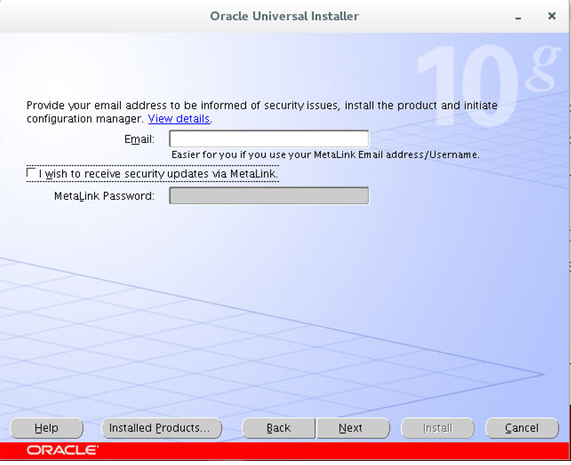
Click Next


Select the correct 10.1.3 Home
Remember no services have to be taken down

Click Yes


EEnter the <oc4jadmin> user password for the OracleAS 10g 10.1.3 instance that is being patched. If you are upgrading from OracleAS 10g 10.1.3.0, the default password is 'secret'. Otherwise the default password is 'oafm', if it was not changed after Release 12 installation

There will be a brief pause in the installer when the application tier processes are stopped.


If getting above error, then
  1. Back up the 10.1.3 Oracle Home/inventory/contentsXML/comps.xml file
  2. Change the INST_LOC variable in the
    10.1.3 Oracle Home/inventory/contentsXML/comps.xml file to the correct
    1013_ORACLE_HOME.
  3. Run the 10.1.3.5 Patch Set installer again after canceling this.


Run above as root user.


Click OK and then
Edit file

 $IAS_ORACLE_HOME/config/run_opatch_generic.sh

And add  -ocmrf /u01/oracle/fuat/apps/tech_st/10.1.3/OPatch/ocm.rsp in opatch command (This is same ocm file created in earlier steps)


Click retry


Exit after installation is done.

Regenerate appsborg.zip and appsborg2.zip files

Run adadmin, and choose Generate product JAR files (with the no force option) to generate the appsborg.zip and appsborg2.zip files.

Validate the version now


$ $IAS_ORACLE_HOME/Apache/Apache/bin/httpd -v

Server version: Oracle-Application-Server-10g/10.1.3.5.0 Oracle-HTTP-Server

Server built:   Jul 21 2009 11:12:22

 or

  1. Run the command 'opatch lsinventory -detail'
  2. Look for 'Oracle Application Server PatchSet' in the 'Product' column. 'Version' should show 10.1.3.5.0.


Restart application tier services

That's it.


Note:

If any further OracleAS 10g patches are applied, ensure that you repeat the Steps to regenerate appsborg.zip and appsborg2.zip and restart the application tier services.


You can Apply the October 2015 CPU or a later CPU to Oracle Fusion Middleware 10.1.3.5. if required.


If you like please follow and comment

Comments

Popular posts from this blog

WebLogic migration to OCI using WDT tool

WebLogic migration to OCI using WDT tool Oracle WebLogic Deploy Tool (WDT) is an open-source project designed to simplify and streamline the management of Oracle WebLogic Server domains. With WDT, you can export configuration and application files from one WebLogic Server domain and import them into another, making it a highly effective tool for tasks like migrating on-premises WebLogic configurations to Oracle Cloud. This blog outlines a detailed step-by-step process for using WDT to migrate WebLogic resources and configurations. Supported WLS versions Why Use WDT for Migration? When moving Oracle WebLogic resources from an on-premises environment to Oracle Cloud (or another WebLogic Server), WDT provides an efficient and reliable approach to: Discover and export domain configurations and application binaries. Create reusable models and archives for deployment in a target domain. Key Pre-Requisites Source System: An Oracle WebLogic Server with pre-configured resources such as: Applica...

How to Validate TDE Wallet Password in Oracle Database

How to Validate TDE Wallet Password in Oracle Database Validating the Transparent Data Encryption (TDE) wallet password is crucial, especially when ensuring that the password is correct without using the OPEN or CLOSE commands in the database. This blog post explains a straightforward method to validate the TDE password using the mkstore utility. Steps to Validate TDE Wallet Password Follow these steps to validate the TDE wallet password: Step 1: Copy the Keystore/Wallet File Navigate to your existing TDE wallet directory. Copy only the ewallet.p12 file to a new directory. If a cwallet.sso file exists, do not copy it . The absence of cwallet.sso ensures that the wallet does not use auto-login, forcing the utility to prompt for the password. Step 2: Validate Using mkstore Use the mkstore utility to check the contents of the wallet file. The mkstore utility will prompt you for the TDE wallet password, allowing you to validate its correctness. Command Syntax To display the conten...

Rename a PDB in Oracle Database Multitenant Architecture in TDE and Non TDE Environment

Rename a PDB in Oracle Database Multitenant Architecture I am sharing a step-by-step guide to help you rename a PDB. This approach uses SQL commands. Without TDE or encryption Wallet Initial Check Check the Current Database Name and Open Mode: SQL > SELECT NAME, OPEN_MODE FROM V$DATABASE; NAME OPEN_MODE --------- -------------------- BEECDB READ WRITE List Current PDBs: SQL > SHOW PDBS; CON_ID CON_NAME OPEN MODE RESTRICTED ---------- ------------------------------ ---------- ---------- 2 PDB$SEED READ ONLY NO 3 FUAT READ WRITE NO We need to RENAME FUAT to BEE  Steps to Rename the PDB Step 1: Export ORACLE_SID Set the Oracle SID to the Container Database (CDB): export ORACLE_SID=BEECDB Step 2: Verify Target PDB Name Availability If the target PDB name is different from the current PDB name, ensure no service exists with the target PDB name. Run SQL to Check Exi...