
Installing CentOS 7 on Virtual Box

Installing CentOS 7 on Virtual Box


In this post I would share the steps for how to setup a Linux environment on a Home system/laptop/desktop.

Download requirements:

1)  VirtualBox--It is a virtualisation software. You can download latest version as per your operating system.


2) CentOS 7 Operating system -Download the ISO image


Installing Virtual Box


Installing Virtual Box on Windows is direct and easy.

Start the Installer and Proceed as per below steps.


Once the installation is complete. Please Start Virtual box and verify!


Installing CentOS 7 on Virtual Box

1) Open Virtual Box and Click on New


2) Provide the details as per below screens

3) Select the appropriate RAM. I have selected 3 GB Ram for my Virtual Machine. 


4) Select to create a harddisk


5) Select Type of hard disk as VDI.


6) Select Storage as dynamically allocated.


7) Provide location to created hard disk and size(I have taken 12 GB size for my VM)


8) Till above steps a new machine would be shown on Virtual Box Manager. Select the machine and click settings


9) Select General> Advanced and make clipboard and Drag n Drop as bidirectional.


10) Select System> Processor. Change the number of process depending on your system. Note: Don't take it beyond green marked threshold.


11) Select Display>Screen and change Video Memory as 128 MB as I am installing GUI.


12) Select Storage > Controller IDE and mount the ISO image of CentOS 7 which was downloaded.


13) Select Network and enable Adapter 1 and Adapter 2.

Adapter 1--> Bridged Adapter (will use for internet)
Adapter 2 --> Host Only Adapter (Will Map Hostname)


14) Once completed close the setting and click on start VM.


15) Select Desired Language


16) The installer will automatically try to detect for date, keyboard and languages. Click on Software Selection and select KDE plasma.


17) Select on Installation Destination and then click Done. As we just verifying the selection the installer made. We are not giving custom file system layout.


18) Click on Network and Hostname and switch on both network.  For second ethernet provide desired hostname as in form (hostname.domain). I have given in my case as lfcs.lab
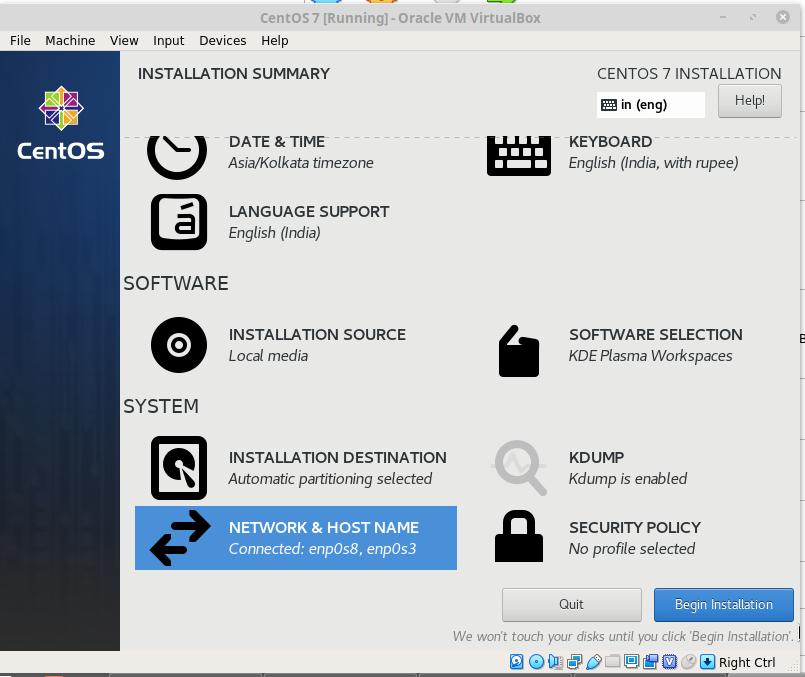


19) Click Next and select change root password. Provide the root password and installer will proceed.

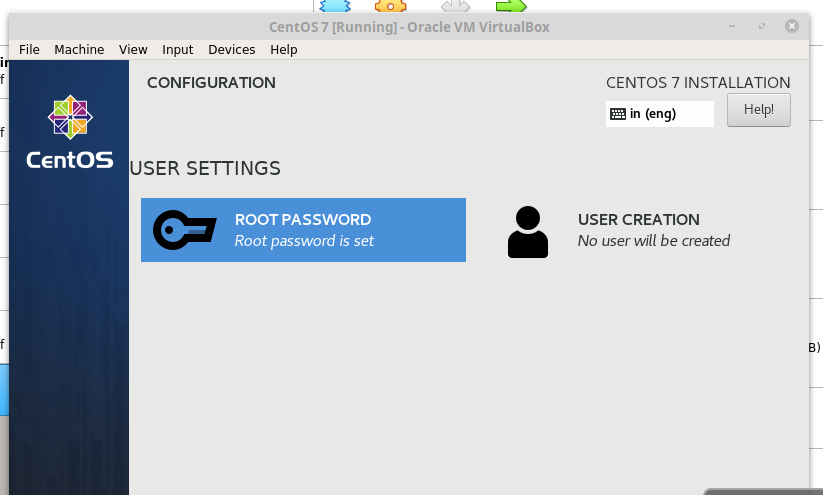


20) Once the installer completes, Please click on reboot.


21) After Reboot Select the License Information and accept. Then click on finish configuration.


22) Once it finishes System will reboot and ask you to login first time. We will login with root user.


23) Installation is finished. Now we will install Kernel headers and then install Guest Additions

Open Terminal from root and run Below
yum install kernel-devel
yum install kernel-headers
yum install gcc

Once completed install Guest Additions


Once completed Restart the system and Enjoy..


Comments

Popular posts from this blog

WebLogic migration to OCI using WDT tool

WebLogic migration to OCI using WDT tool Oracle WebLogic Deploy Tool (WDT) is an open-source project designed to simplify and streamline the management of Oracle WebLogic Server domains. With WDT, you can export configuration and application files from one WebLogic Server domain and import them into another, making it a highly effective tool for tasks like migrating on-premises WebLogic configurations to Oracle Cloud. This blog outlines a detailed step-by-step process for using WDT to migrate WebLogic resources and configurations. Supported WLS versions Why Use WDT for Migration? When moving Oracle WebLogic resources from an on-premises environment to Oracle Cloud (or another WebLogic Server), WDT provides an efficient and reliable approach to: Discover and export domain configurations and application binaries. Create reusable models and archives for deployment in a target domain. Key Pre-Requisites Source System: An Oracle WebLogic Server with pre-configured resources such as: Applica...

How to Validate TDE Wallet Password in Oracle Database

How to Validate TDE Wallet Password in Oracle Database Validating the Transparent Data Encryption (TDE) wallet password is crucial, especially when ensuring that the password is correct without using the OPEN or CLOSE commands in the database. This blog post explains a straightforward method to validate the TDE password using the mkstore utility. Steps to Validate TDE Wallet Password Follow these steps to validate the TDE wallet password: Step 1: Copy the Keystore/Wallet File Navigate to your existing TDE wallet directory. Copy only the ewallet.p12 file to a new directory. If a cwallet.sso file exists, do not copy it . The absence of cwallet.sso ensures that the wallet does not use auto-login, forcing the utility to prompt for the password. Step 2: Validate Using mkstore Use the mkstore utility to check the contents of the wallet file. The mkstore utility will prompt you for the TDE wallet password, allowing you to validate its correctness. Command Syntax To display the conten...

Rename a PDB in Oracle Database Multitenant Architecture in TDE and Non TDE Environment

Rename a PDB in Oracle Database Multitenant Architecture I am sharing a step-by-step guide to help you rename a PDB. This approach uses SQL commands. Without TDE or encryption Wallet Initial Check Check the Current Database Name and Open Mode: SQL > SELECT NAME, OPEN_MODE FROM V$DATABASE; NAME OPEN_MODE --------- -------------------- BEECDB READ WRITE List Current PDBs: SQL > SHOW PDBS; CON_ID CON_NAME OPEN MODE RESTRICTED ---------- ------------------------------ ---------- ---------- 2 PDB$SEED READ ONLY NO 3 FUAT READ WRITE NO We need to RENAME FUAT to BEE  Steps to Rename the PDB Step 1: Export ORACLE_SID Set the Oracle SID to the Container Database (CDB): export ORACLE_SID=BEECDB Step 2: Verify Target PDB Name Availability If the target PDB name is different from the current PDB name, ensure no service exists with the target PDB name. Run SQL to Check Exi...