How to install/configure Oracle EBS R12.2 on Multiple Server/Nodes (Database and Application Separately)

In this post I am going to share how to install Oracle EBS R12.2 on multiple nodes. Which means Database on one server and Application on one server.


I am using Oracle Virtual Box and configured 2 servers, one for Database and one for Application.

Virtual Server/Machine Details

Database Node
Memory: 6 GB
Harddisk: 200 GB
Hostname: fundb.lab
IP: 192.168.56.80
OSuser: oracle
Stage Area has been created separately on nodes and is non shared

Application Node


Memory: 7 GB

Harddisk: 270 GB
Hostname: funapp.lab
IP: 192.168.56.81
OSuser: applmgr
Stage Area has been created separately on nodes and is non shared

 Please perform all the pre-reqs on both nodes as described in earlier post.

1) user creation
2) rpm installation and limits configuration
3) oraInst.loc

Refer https://www.funoracleapps.com/2017/02/installing-oracle-apps-r122-step-by.html for steps by step pre-installation method setup.

Also make sure hostname are pingable from each other. This can be achieved by putting the entries in /etc/hosts file.

Once both the servers are ready to installation. Please follow below steps

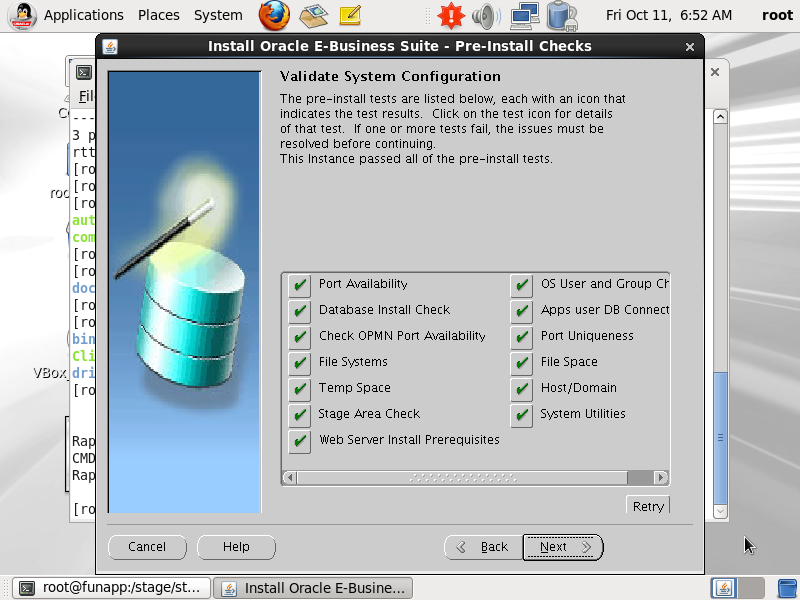
1) Kick-off rapidwiz on Database node first. We need to give all information for our db node and apps node. Once the installation on DB node completes, our database and listener would be ready.


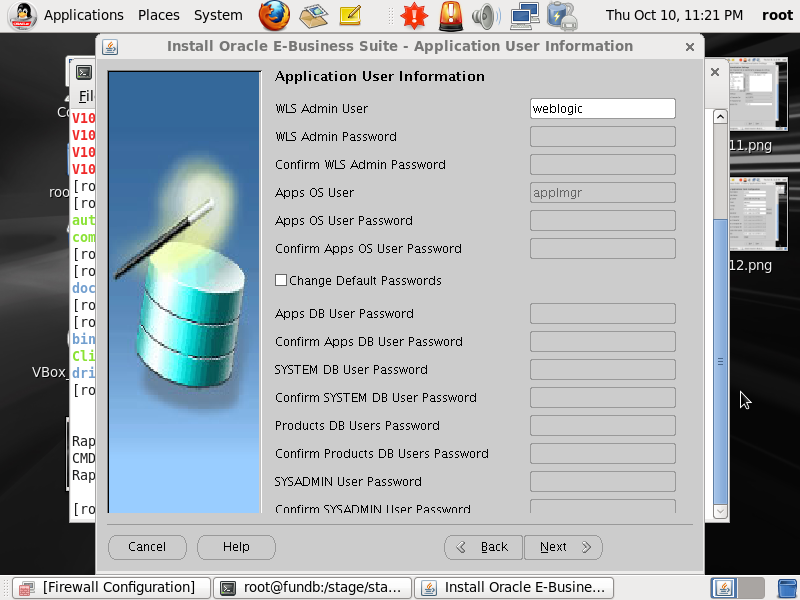


2) There would be a configuration file created on DB node ($ORACLE_HOME/appsutil/conf_.txt). Please copy it to application node as it would be needed during installation. 

3) Now we need to kickoff rapidwiz on application node.


Please provide the path of configuration file copied in step 2.


This completes our installation of EBS on 2 nodes.


Comments

Popular posts from this blog

WebLogic migration to OCI using WDT tool

WebLogic migration to OCI using WDT tool Oracle WebLogic Deploy Tool (WDT) is an open-source project designed to simplify and streamline the management of Oracle WebLogic Server domains. With WDT, you can export configuration and application files from one WebLogic Server domain and import them into another, making it a highly effective tool for tasks like migrating on-premises WebLogic configurations to Oracle Cloud. This blog outlines a detailed step-by-step process for using WDT to migrate WebLogic resources and configurations. Supported WLS versions Why Use WDT for Migration? When moving Oracle WebLogic resources from an on-premises environment to Oracle Cloud (or another WebLogic Server), WDT provides an efficient and reliable approach to: Discover and export domain configurations and application binaries. Create reusable models and archives for deployment in a target domain. Key Pre-Requisites Source System: An Oracle WebLogic Server with pre-configured resources such as: Applica...

Rename a PDB in Oracle Database Multitenant Architecture in TDE and Non TDE Environment

Rename a PDB in Oracle Database Multitenant Architecture I am sharing a step-by-step guide to help you rename a PDB. This approach uses SQL commands. Without TDE or encryption Wallet Initial Check Check the Current Database Name and Open Mode: SQL > SELECT NAME, OPEN_MODE FROM V$DATABASE; NAME OPEN_MODE --------- -------------------- BEECDB READ WRITE List Current PDBs: SQL > SHOW PDBS; CON_ID CON_NAME OPEN MODE RESTRICTED ---------- ------------------------------ ---------- ---------- 2 PDB$SEED READ ONLY NO 3 FUAT READ WRITE NO We need to RENAME FUAT to BEE  Steps to Rename the PDB Step 1: Export ORACLE_SID Set the Oracle SID to the Container Database (CDB): export ORACLE_SID=BEECDB Step 2: Verify Target PDB Name Availability If the target PDB name is different from the current PDB name, ensure no service exists with the target PDB name. Run SQL to Check Exi...

How to make flash work on IE or Edge with IE Compatibility

How to make flash work on IE or Edge with IE Compatibility With flash been ended from 1-Jan-2021, many applications using flash have stopped working the way they were built (like OEM, OBIEE, etc). The option you have to upgrade.  This method will give a workaround in IE or Edge in IE compatibility mode without upgrading. 1. Verify you have installed flash.ocx on your desktop. Typically, flash.ocx file is located in C:\Windows\System32\Macromed\Flash or C:\Windows\SysWOW64\Macromed\Flash according to your laptop OS system. 2. Edit mms.cfg from the location as a System Administrator In the case of the 64bit system, it might have mms.cfg under C:\Windows\SysWOW64\Macromed\Flash 3. Add below options into mms.cfg file. Note: AllowListUrlPattern list is an example. The URLs need to be replaced to your hosts those have Flash pages. SilentAutoUpdateEnable=0 AutoUpdateDisable=1 EOLUninstallDisable=1 EnableAllowList=1 AllowListUrlPattern=http://www.google.com/ AllowListUrlPattern=http://goo...